How to Create AI Short Films & 15-Minute Videos Using Google Flow (Same Face & Voice Consistency)
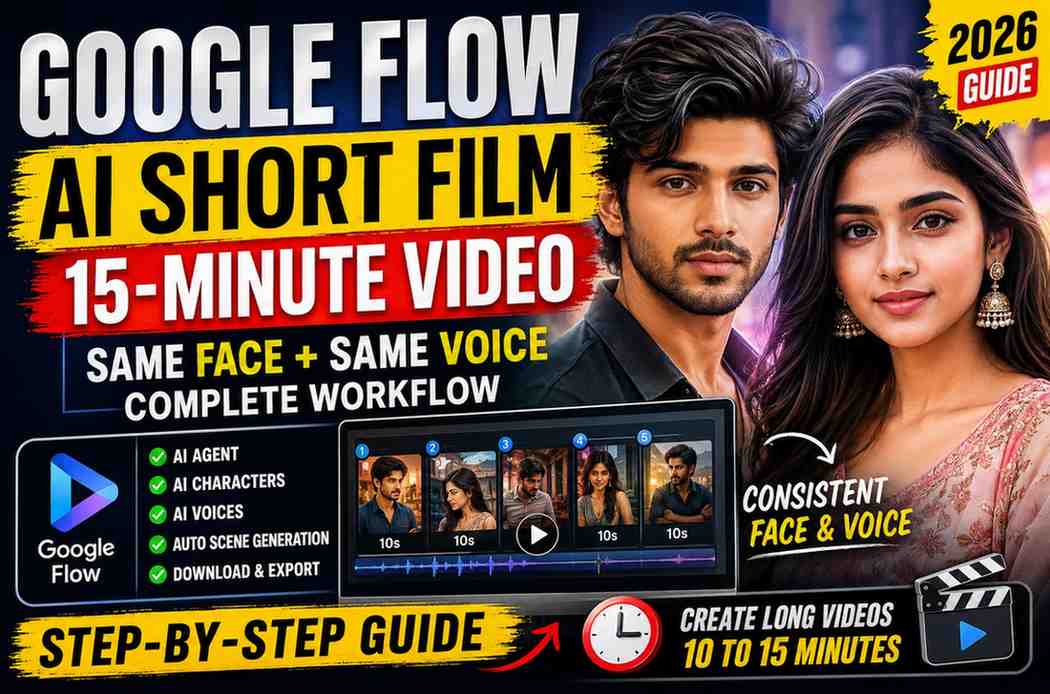
Introduction
Artificial Intelligence has redefined the way we perceive video creation over the past few years. A few years ago, it would take professional editing tools, animation, and voice actors to create long-form videos, short films, or even animated movies. However, with the right tools at hand, such as Google Flow, anyone can design long-form AI videos using text prompts and scene generator that retain the same face, same voice, and same character throughout the video.
Whether you are a YouTuber, content creator, marketer, teacher, or filmmaker, Google Flow makes it possible to design cinematic AI videos using AI agents without years of animation experience. Say goodbye to tedious video editing software and tedious editing of various video scenes. Google Flow AI Agent can generate connected long-form videos with ease.
Below is a step-by-step guide on how to make an AI movie using Google Flow.
What is Google Flow?
Google Flow is an AI-powered video creation tool that allows its users to design cinematic AI videos using text prompts, AI characters, and scene generator. Using Google Flow, you can design multiple connected AI video clips while retaining the same character throughout the video.
One of the coolest things about Google Flow is the ability to use AI Agent to understand your screenplay and generate connected scenes based on your story.
Google Flow is perfect for designing educational content, animated movie clips, AI shorts, marketing videos, and even long-form YouTube videos. Google Flow is beginner-friendly and offers users various AI characters and scenes to design beautiful videos. The second most interesting thing about Google Flow is its amazing ability to ensure the same appearances throughout the video. So after designing your favorite character, you can generate the same character in different scenes and even use the same AI voice actor for your characters.
Why Google Flow? What Makes it Unique Compared to Other AI Video Creation Tools?
There are several AI video creation tools that allow their users to design stunning AI-generated videos. However, only a few video creation tools offer the same consistency and cinematic feel of Google Flow.
Some of the Best Things About Google Flow Include
| Same Face Consistency | Same AI Voice |
|---|---|
| AI Agent | Character Library |
| Scene Generator | Multiple Scene Creation |
| Cinematic Feel | One-click Long Video Creation |
Using Google Flow, you can design connected AI videos with ease. For example, using AI Agent, you can generate connected scenes with the same character, same appearance, and same voice actor for different scenes. Thanks to the character library and scene generator, you can design stunning AI videos.
Google Flow is perfect for creating YouTube Shorts, AI Shorts, long-form YouTube videos, educational content, and even animated movies.
Step 1: Generate Your Story Script Using ChatGPT or Google Gemini
The first step to making an AI movie using Google Flow is coming up with your story script.
To do that, you may want to use ChatGPT or Google Gemini AI to generate your screenplay.
Ask the AI assistant to generate multiple scenes with ten seconds of content each. You can also ask for different scenes with specific characters, camera directions, and more. Make sure to remind the AI assistant that you want the same characters, voices, and appearances for different scenes.
"Please generate a romantic short film with Telugu dialogues, cinematic camera directions, and ten seconds of content per scene."
In the end, you will receive a screenplay to proceed to the next step. However, make sure that every scene transition seamlessly into the next one.
Step 2: Create Character Prompts
Now that you have a story script, it is time to create character prompts.
Make sure to describe every character in detail. Specify the age, hairstyle, facial features, clothing, skin color, face expressions, and more. The more detailed the character description, the easier it will be for Google Flow to retain the same character appearances for different scenes.
It is always a good idea to use close-up reference images for characters since the facial features will be easy to identify.
You also want to make sure that you follow the same process when describing other characters, including the heroine, friends, teacher, police officer, and more. Make sure not to change the character appearances from one scene to another.
Step 3: Create Characters Inside Google Flow
Now it is time to use the character prompts generated in Step 2 to create characters inside Google Flow.
Inside Google Flow, you can either upload your image or use AI to generate characters based on prompts. If you are going to make an AI video using your face, make sure to upload your image using a close-up portrait reference picture.
Finally, make sure to save the Hero and Heroine with appropriate names such as Teacher, Police Officer, and more.
Step 4: Utilize AI Voices
Inside Google Flow, you can also assign AI voices to your characters.
Google Flow has an impressive library of AI voice actors with different voices and accents.
Make sure to assign different AI voices to different characters. Also, make sure that the AI voice actor is appropriate for the character. For example, a heroic character might have a deeper voice compared to the narrator.
Once you have selected the AI voice actor of your choice, make sure to click Add to Character and Save.
This way, Google Flow will always retain the same AI voice for every character.
Step 5: Generate Your AI Short Film Using Google Flow AI Agent
After completing Step 1 to Step 4, it is time to actually generate your AI movie.
Copy-paste your screenplay generated using ChatGPT or Google Gemini and add your favorite Hero and Heroine by clicking Add to Prompt button.
Finally, click AI Agent button at the bottom of the screen to generate your movie.
Google Flow AI Agent will understand your screenplay and generate multiple connected scenes while retaining the same appearances and voices for all characters.
By using Google Flow AI Agent, you can automatically generate multiple scenes for your AI video.
Step 6: Generate All Scenes Automatically
After clicking the AI Agent button, click Generate to view your first scene.
After reviewing the first scene, click Extend and select the Create All Scenes option.
Using Google Flow's Create All Scenes option, you will be able to automatically generate every scene for your AI video retaining the same:
- Same face
- Same hairstyle
- Same clothing
- Same voice
- Same facial expression
- Same scene continuity
Since every scene will be generated using the same Hero and Heroine, your entire AI video will look stunning and cinematic.
Moreover, this option is perfect for longer-form AI videos since you will not have to spend hours upon hours editing different video scenes.
Step 7: Combine Every Scene Into One Long Video
After all scenes have been successfully generated, make sure to switch to the Videos tab on the left side of the screen.
Click Add to Scene and Create Scene for your first video.
Do the same for all of the other scenes in chronological order.
Finally, make sure to switch to the Scenes tab to view your entire AI video in one take.
Instead of watching multiple video scenes, you will be able to watch a much longer, connected AI video.
Step 8: Download the Final AI Movie
Once you are satisfied with the final result, make sure to hit the Download Project button at the top of the screen.
Google Flow will combine all of the video scenes into one video for you to download.
This process will take a little longer depending on how long your AI video is.
Once the download has been completed, make sure to save your AI video on your device.
Your final AI movie is now ready to be shared on YouTube, Instagram, Facebook, and other platforms.
Tips for Better Face and Voice Consistency
Keeping the same face and voice for every scene is essential if you want to design a professional AI video.
Helpful Tips
- Utilize close-up reference images for every character
- Keep the same hairstyle for every character
- Retain the same clothing unless it is necessary to change it
- Avoid changing framing and lighting
- Make sure to create a character using a Character panel
- Change AI voice only once
- Always use the same character in every scene
- Avoid making major prompt changes
- Always use Google Flow's AI Agent to generate scenes
The fewer changes you make throughout your AI video, the more consistency it will have.
Common Mistakes Beginners Make
Beginners always make several mistakes when designing their first AI videos.
Common Mistakes
| Creating New Character for Every Scene | Changing Hairstyle and Outfit |
|---|---|
| Using Different AI Voices | Making Major Prompt Changes |
| Forgetting About Characters Panel | Getting Disappointed Easily |
| Generating Scenes Manually | Using Low-Quality Reference Images |
| Changing Framing From Scene to Scene | Forgetting About Scene Continuity |
Make sure to avoid all of these mistakes whenever you are designing your first AI video.
Advantages of Google Flow
There are numerous advantages of using Google Flow to create your AI videos.
Advantages
| Same Face Consistency | Same AI Voice |
|---|---|
| AI Agent | Character Library |
| Scene Generator | Multiple Scene Creation |
| Cinematic Feel | One-click Long Video Creation |
Google Flow enables you to retain the same appearances, voices, characters, and more to offer you a truly cinematic feel.
In addition, you will be able to manage multiple scenes effortlessly using just a few clicks.
Using Google Flow, you will be able to design educational, cinematic, marketing, animated, short film, and long-form AI videos.
Google Flow is beginner-friendly and offers an intuitive interface that will allow you to reduce your video editing time significantly.
Frequently Asked Questions (FAQ)
Can Google Flow Create a 15-Minute AI Video?
Yes, Google Flow can be used to create a 15-minute AI video. Using the scene generator, you will be able to generate multiple connected scenes and use the long video creation functionality to export one long-form AI video.
How Can I Retain the Same Face in Every Video?
Make sure to create and use the same character every time you are going to generate a video scene. This way, Google Flow will retain the same appearance.
Can I Upload My Photo?
Yes, you can upload your own photo as a character reference image and create stunning AI videos.
How Can I Retain the Same AI Voice?
Make sure to assign an AI voice actor to the same character for every scene. This way, Google Flow will retain the same voice actor.
Is Google Flow Suitable for YouTube Creators?
Yes, Google Flow is perfect for YouTube creators who wish to design cinematic AI shorts, AI short films, marketing videos, educational content, animated explainers, and more.
Quick Links
- GOOGLE FLOW: https://labs.google/fx/tools/flow
- MOVIEFLOW: https://movieflow.ai/animation
- WORKFLOW: https://youtu.be/CpVGZFRZaVg?si=8DLX2BExMz8Al5kW
Conclusion
Google Flow has transformed the way creators produce AI-powered videos. Instead of manually creating and editing dozens of individual clips, you can build an entire AI short film using a structured workflow that includes screenplay generation, reusable characters, AI voices, and the powerful AI Agent.
By following this step-by-step process, you can create professional 10–15 minute AI movies with consistent faces, voices, and scene continuity. Whether you're a beginner or an experienced content creator, mastering Google Flow can dramatically speed up your production workflow while delivering high-quality results for YouTube, social media, and storytelling projects.
Continue Reading
Recommended Stories

5 Powerful ChatGPT & Gemini AI Prompts Everyone Should Know in 2026

Create a Brand-New High-Energy Telugu DJ Folk Festival Anthem for Vinayaka Chavithi Using AI (2026 Guide)