How to Make Amazing ChatGPT Google Flow AI Videos
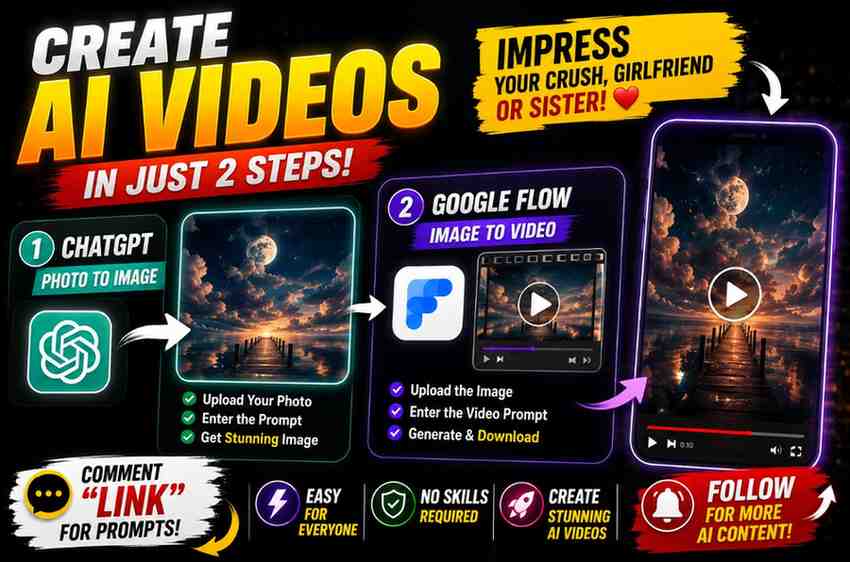
How To Make Customized Cinematic AI Video From Your Photo With ChatGPT & Google Flow
Make a stylish AI video from your photo for Instagram, a birthday message, and just some personalized fun all from your own photo.
This two-step workflow uses you to generate a stylized image with ChatGPT first and then to turn said image into motion with Google Flow
How To Make A Cinematic AI Video From A Photo In 2 Steps
Step 1 — Image: Upload your photo to ChatGPT with a detailed image prompt describing the outfit, environment, lighting and poses you'd like
Step 2 — Video: Upload the image ChatGPT generated to Google Flow with a video prompt describing the camera moves and motion you'd like added
Step 1: Choose Your Reference Photo
A good reference photo includes your face or overall aesthetic clearly, good lighting and resolution, and an uncluttered setting.
Step 2: Generate Your Image In ChatGPT
Upload your photo to ChatGPT and describe the environment, attire, lighting, pose, and overall look you want. The more descriptive the prompt, the more control you'll have.
PROMPT
✨ AI PromptStunning close-up portrait of a young Indian woman in a green silk saree with gold border, layered antique gold jewelry, jhumkas, green-gold bangles and black bindi. Holding two pink lotus flowers near her face. Long wavy black hair, glamorous makeup, eyeliner, rose-red lips, glowing skin, dreamy eyes. Warm cinematic lighting, dark blurred background, vintage aesthetic, realistic, ultra-detailed, 85mm lens, shallow depth of field, soft glow, 8K.!ChatGPT Image Aug 4, 2026, 06_57_16 PM.png!ChatGPT Image Aug 4, 2026, 07_05_25 PM.pngPose 1 – Chin Resting on Folded Hands> Using the uploaded woman's face as the reference, preserve her exact facial features, skin tone, hairstyle, and identity. Create a stunning close-up cinematic portrait of her wearing a luxurious emerald green Kanchipuram silk saree with a rich antique gold border, layered antique gold temple jewelry, jhumkas, green and gold bangles, a delicate black bindi, and fresh jasmine flowers woven into her long wavy black hair. She is gently resting her chin on her folded hands placed on a polished wooden table while looking directly into the camera with a soft, heartwarming smile. Warm golden temple lighting illuminates her glowing skin, with brass diyas, floating golden bokeh, and a softly blurred traditional temple-inspired background. Ultra-realistic photography, 85mm lens, shallow depth of field, cinematic color grading, HDR, soft glow, premium luxury aesthetic, 8K, vertical 9:16.---Pose 2 – Looking Down & Touching Earring> Using the uploaded woman's face as the reference, preserve her exact facial features, skin tone, hairstyle, and identity. Create a beautiful cinematic portrait of her wearing a luxurious emerald green silk saree with intricate antique gold borders, layered temple jewelry, elegant jhumkas, stacked green-gold bangles, jasmine flowers in her long wavy hair, and a tiny black bindi. She gently looks downward with a shy smile while lightly touching her jhumka with one hand. Her expression is graceful and peaceful. Warm cinematic lighting highlights her glowing skin while soft golden bokeh, brass lamps, and a traditional temple background remain beautifully blurred. Ultra-realistic, 85mm portrait lens, shallow depth of field, cinematic HDR lighting, premium festive aesthetic, soft glow, highly detailed, 8K, vertical 9:16.---Pose 3 – Holding Pink Lotus> Using the uploaded woman's face as the reference, preserve her exact facial features, skin tone, hairstyle, and identity. Create an elegant cinematic portrait of her dressed in a luxurious emerald green silk saree with an ornate antique gold border, layered gold jewelry, traditional jhumkas, green-gold bangles, jasmine flowers in her long flowing hair, and a black bindi. She gently holds a fresh pink lotus flower close to her cheek while looking toward the camera with dreamy expressive eyes and a soft smile. Warm golden temple lighting creates beautiful reflections on her jewelry. The background features softly blurred brass lamps, floating golden bokeh, and a traditional festive atmosphere. Hyper-realistic photography, 85mm lens, shallow depth of field, cinematic color grading, soft glow, ultra-detailed skin texture, HDR, 8K, vertical 9:16.---Pose 4 – Holding Diya & Lotus Bowl> Using the uploaded woman's face as the reference, preserve her exact facial features, skin tone, hairstyle, and identity. Create a luxurious cinematic portrait of her wearing a rich emerald green silk saree with an antique gold border, layered temple jewelry, traditional jhumkas, green-gold bangles, jasmine flowers, and a tiny black bindi. She gracefully holds a beautifully carved brass bowl filled with pink lotus flowers and a glowing diya using both hands while smiling softly and looking downward with elegance. Warm candlelight reflects naturally on her glowing skin and jewelry. The background is a softly blurred traditional temple interior with golden bokeh lights, brass lamps, and warm festive ambience. Ultra-realistic photography, 85mm lens, shallow depth of field, cinematic HDR lighting, luxury Indian portrait style, premium color grading, soft glow, 8K quality, ---
Step 3: Review The Generated Image
Check the face, proportions, and overall look before proceeding. If something's off, adjust the prompt and regenerate — there's no need to go into the video step before you're happy with the image.
Step 4: Open Google Flow And Upload The Image
Open Google Flow, start a new project, choose vertical 9:16 if you're making a Reel, and upload the image you generated in ChatGPT as your reference.
Step 5: Add Your Video Prompt
The video prompt should describe facial expression, natural gestures, camera movement, and environment — generally simpler and shorter than the image prompt.
prompt
✨ AI PromptCreate an ultra-realistic cinematic Indian traditional portrait video using the uploaded 4-panel reference image as the visual reference.IMPORTANT:Keep the SAME woman throughout the entire video. Preserve her exact facial features, skin tone, face shape, hairstyle, body proportions and overall appearance from the reference image. Do not change her identity between shots. Real human photography, NOT CGI, NOT cartoon, NOT AI-looking.She is wearing a luxurious emerald green Kanchipuram silk saree with an intricate antique gold border, traditional antique gold temple jewelry, jhumkas, green-gold bangles, a small black bindi and fresh jasmine flowers woven into her long wavy black hair.STYLE:Ultra-realistic Indian cinematic photography.Natural skin texture and realistic facial movement.Warm golden temple lighting.Soft background bokeh.Shallow depth of field.85mm portrait lens look.Subtle film grain.Premium festive Indian aesthetic.Natural cloth movement.Realistic jewelry reflections.Realistic hands and fingers.No exaggerated beauty filter.No face morphing.No sudden changes in clothing or accessories.Vertical 9:16.STORYBOARD:SHOT 1 — 0:00–0:03Use the first pose from the reference.The woman is sitting naturally behind a polished wooden table with her chin gently resting on her folded hands.Camera starts slightly wider and slowly pushes in toward her face.She looks directly into the camera and gives a soft, genuine smile.Her eyes naturally blink once.A gentle breeze moves a few strands of her hair.Warm golden temple lamps create beautiful bokeh in the background.Her saree and jewelry remain completely natural and realistic.CAMERA:Slow cinematic push-in, stable camera, 85mm lens, shallow depth of field.TRANSITION:Smooth cinematic dissolve.SHOT 2 — 0:03–0:05Transition naturally to the second pose.She slowly lowers her gaze with a shy smile.She gently raises one hand and touches her jhumka.Her fingers move naturally and delicately.The jhumka slightly swings from the movement.She briefly looks at the earring and then slightly toward the camera.Jasmine flowers and loose hair strands move subtly in the soft breeze.Golden temple lights remain softly blurred behind her.CAMERA:Slow subtle camera movement from left to right, close-up portrait framing.TRANSITION:Natural match cut based on her hand movement.SHOT 3 — 0:05–0:08Transition to the third pose.She gently brings a fresh pink lotus flower near her cheek.She looks toward the camera with dreamy expressive eyes and a soft natural smile.The lotus moves slightly as she adjusts her hand.Her bangles make a subtle realistic movement.Her long hair moves gently in the breeze.Golden bokeh lights shimmer naturally in the background.CAMERA:Very slow cinematic push-in toward her eyes and lotus.Focus smoothly shifts from the lotus to her eyes.SHOT 4 — 0:08–0:10Transition naturally to the fourth pose.She gracefully holds a beautifully carved brass bowl filled with fresh pink lotus flowers and a small glowing diya.She looks down at the diya with a peaceful smile.The flame flickers naturally and casts warm light onto her face and jewelry.She slowly lifts her gaze toward the camera at the end.The lotus flowers move subtly.The brass bowl has realistic reflections.Background temple lights create soft golden bokeh.CAMERA:Slow upward camera movement from the diya and flowers toward her face.End with a beautiful close-up of her smiling face.ENDING:Hold the final frame for approximately 1 second.Natural eye movement, natural breathing, subtle hair movement and realistic diya flame.REALISM REQUIREMENTS:Photorealistic human movement.Natural facial expressions.Natural blinking.Realistic hand anatomy and finger movement.Realistic jewelry physics.Realistic silk fabric folds and movement.Realistic lotus petals.Realistic fire and light interaction.Consistent face across every shot.Consistent saree, jewelry, hairstyle and bindi.No duplicate people.No extra fingers.No deformed hands.No distorted face.No flickering.No unnatural body movement.No rapid camera movement.No text.No watermark.Overall feeling:Elegant, graceful, devotional, luxurious and emotionally warm — like a professionally shot Indian festive fashion film.
My Experience With This Workflow
Generating all four poses from the same opening identity-lock sentence (rather than four unrelated prompts) made a big difference in Step 4 — the video model had an easier time treating them as one continuous person across the four shots. The hand-near-jewelry moments (Shot 2's earring touch, Shot 4's bowl-holding) were the parts most likely to need a regeneration; fine finger and jewelry detail is a common weak point for AI video — budget an extra attempt for those specific shots rather than the whole sequence.
Tips For Better Results
For the image step: use a clear reference photo, describe the scene specifically, and review carefully before moving to video.
For the video step: keep the prompt focused on expression, gesture, and camera movement — avoid overloading it with details that belong in the image prompt instead.
Where This Workflow Works Well
Personal creative photos, birthday or special-occasion messages, Instagram Reels, and general AI video experimentation — anywhere a stylized, personalized short clip fits better than a generic stock-style video.
Common Mistakes To Avoid
Using a low-quality reference photo, writing a too-short image prompt, overloading the video prompt with unnecessary detail, skipping the image review step before moving to video, and forgetting to match aspect ratio to your target platform.
FAQ
Can I use my own photo with ChatGPT for this?
Yes — that's the intended use of this workflow, generating a stylized image from your own reference photo first.
Can ChatGPT make the image and Google Flow make the video?
Yes — that's exactly the two-step split this guide follows: ChatGPT for the still image, Google Flow for the motion.
Do I need video editing skills?
No — both steps are prompt-based; no editing software is required.
Why does the video prompt repeat the identity-lock instructions so much?
Repetition across the prompt is what keeps the model from letting the face or outfit drift between the four shots — it's intentional, not padding.
Conclusion
This two-step ChatGPT-to-Google-Flow workflow takes a single photo to a stylized, moving portrait video — generate the image first and review it, then animate it with a detailed shot-by-shot video prompt like the one above.
Written by Dinesh — full-stack developer and content creator testing AI image and video prompts for real-world use.
Continue Reading
Recommended Stories

How to Claim Google AI Pro (Google AI Plus) Free for 12 Months Complete Guide 2026
How to Create Trending AI Videos Using Google Flow (Secret Prompt Guide 2026)